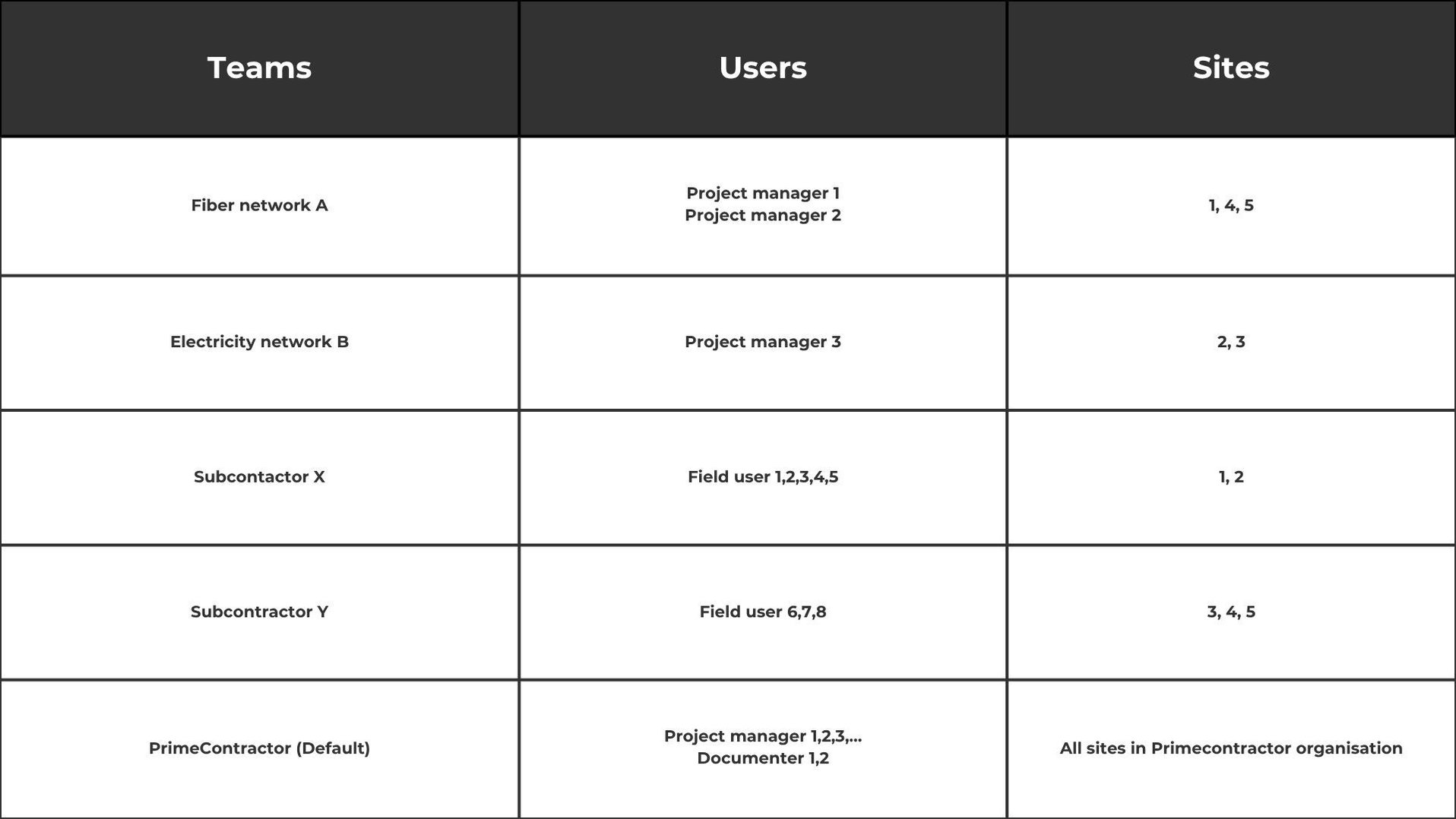
User management and teams
User and access management
- Every prime contractor has its own Groundhawk organization
- Users are created under this prime contractor organization
- Site = Worksite
- Team = access group where all users assigned to the team get access to all sites assigned to that specific team
- There are five user roles that give different access:
- 1. Viewer = View only access to specific sites or to team sites
- 2. Field user = Can only see sites self-created or assigned to
- 3. Project manager = wide visibility to sites in the organization
- 4. Documenter = wide visibility and editing rights to projects in the organization
- 5. Manager = user administrator, full visibility to users and sites
User management
- Prime contractor is responsible for user management, creating new users, maintaining the correct information and suspending access when users should not have it anymore
- New users: The organization manager creates the user and provides user with their username and password
- Remove access: User access is removed by turning the user inactive
User Creation Instructions
In the portal, click the menu icon (three lines) on the left
Click User Management from the menu
On the top right corner, click Add User
A New user window will open where you need to enter following information:
- Email: user´s email address
- Username: must follow the format
firstname.lastname.xxx (2-4 letters at the end - organization name) all in lowercase
- Name: First and Last name
- Phone: must include the country code
- Organization: user´s organization name
- Organization role: role assigned to the user within the organization
Click Save to complete the user creation
Send user their username and password by email
Setting up teams in your organisation
- Organisation = Prime Contractor
Every prime contractor is an own organisation in Groundhawk - Teams for subcontractors.
All Subcontractor personnel get immediate access to sites created under that subcontractor team and there is no need to share user names or assign user names for each site individually. Just add the Subcontractor-team to the site and all users get access - Teams for network owners / customers.
All network owner personnel who are in this team can follow all their sites
Teams and Example
The purpose of Teams in Groundhawk is to make access management easier, especially for subcontractor personnel
Example:
PrimeContractor Ltd uses two subcontractors (X and Y) and that builds fiber and electricity networks for two customers (A and B). There are five ongoing sites.
PrimeContractor can now create team SubY assign sites 3, 4 and 5 to SubY, as well as all Subcontractor Y personnel working on sites 3, 4, 5 into this team.
Now if a new team member joins that person is added to team SubY and automatically gets access to sites 3,4,5 and can make mappings for those projects.
If the Subcontractor Y starts a new Site (6) for the Primecontractor that site is simply added to team SubY and now all personnel of subcontractor Y automatically has access to the new site.
Personnel at Subcontractor X do not see any of the projects in the team SubY and vice versa.
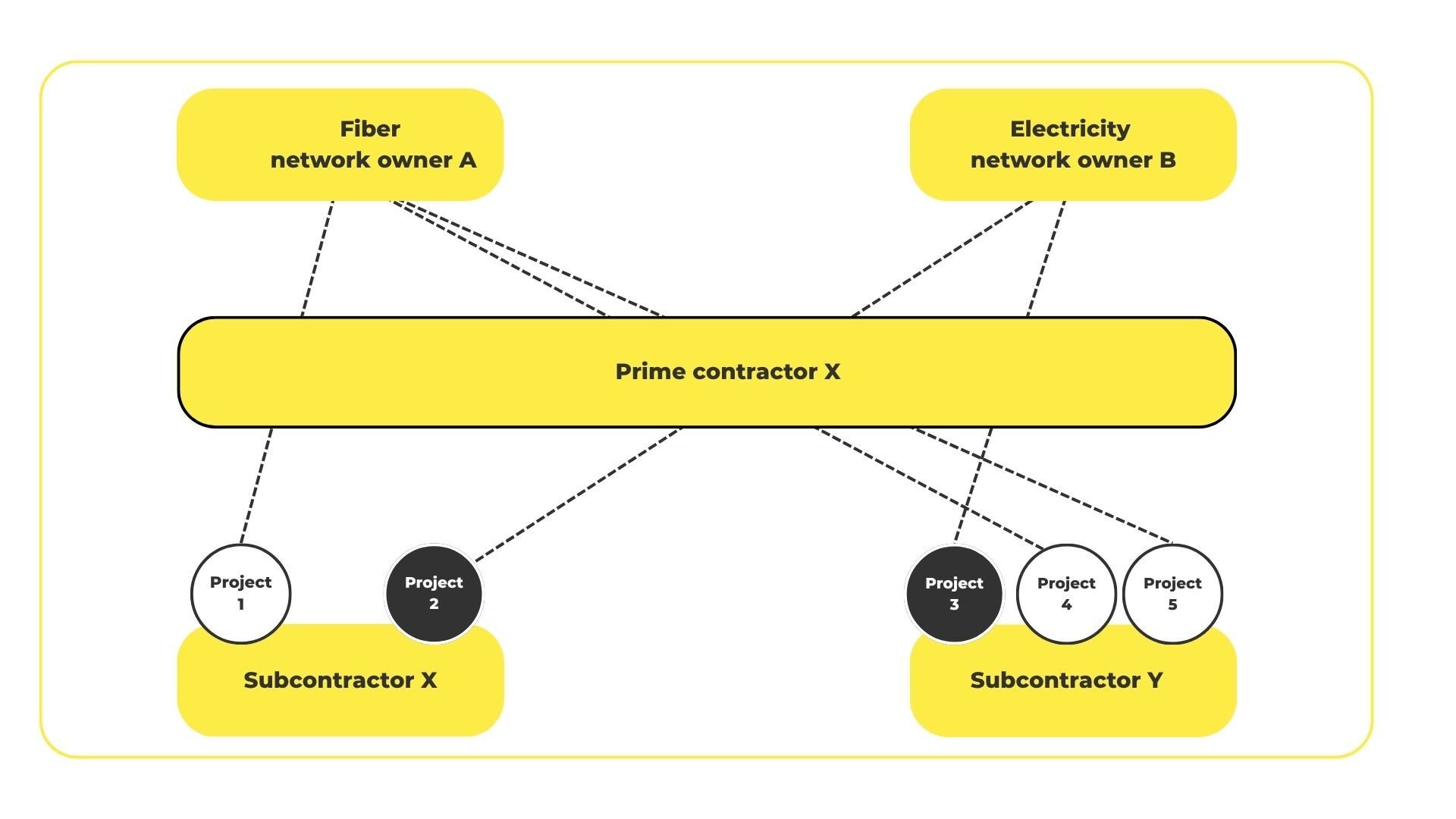
Teams configuration expanded
In this expanded configuration, there are four teams defined. Two for subcontractors and two for network owners.
Site 1 belongs to both teams SubX and FibA automatically giving rights to FibA personnel to view and SubX personnel to make mappings for Site 1.
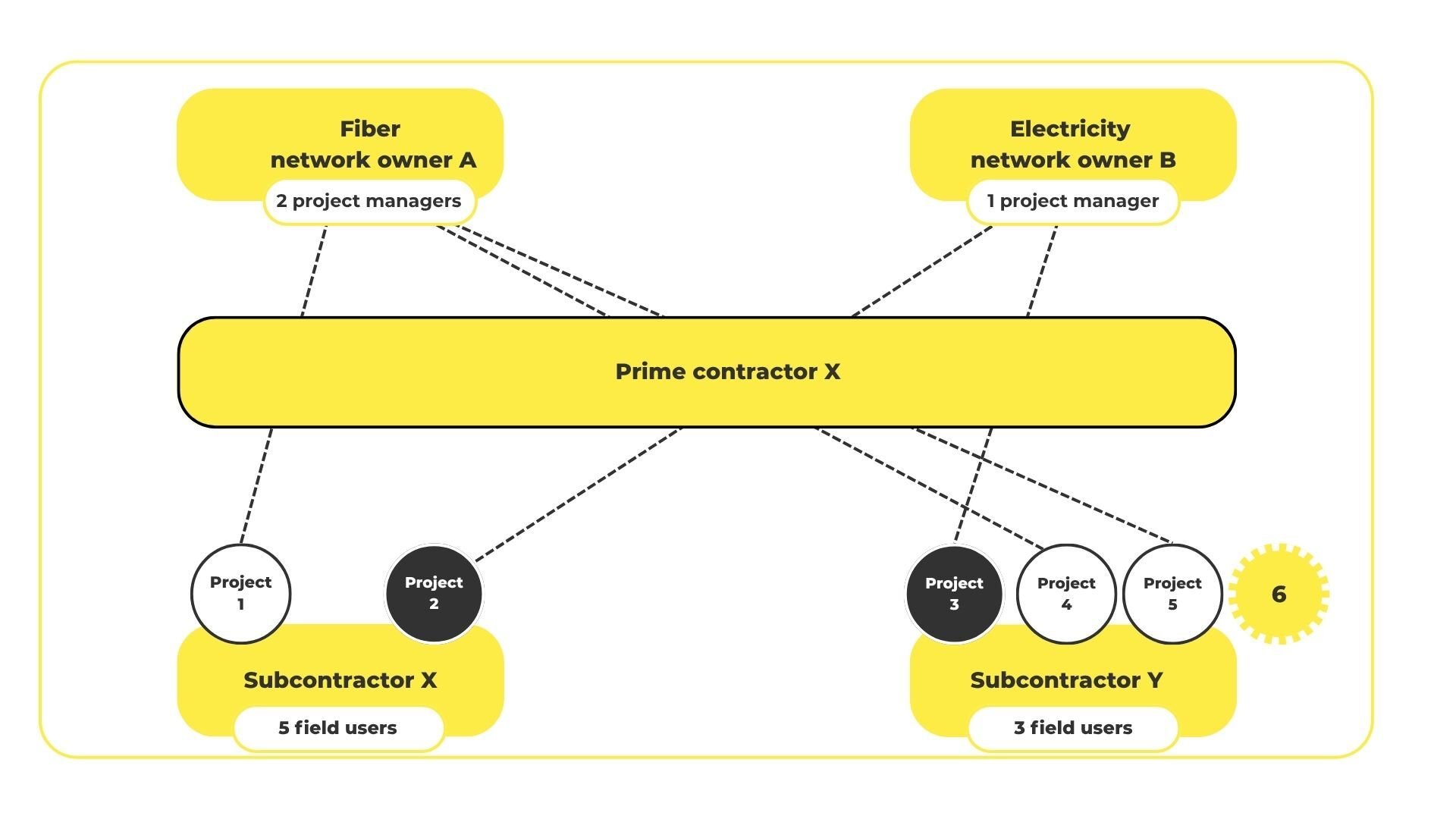
NEW SITE EXAMPLE: When a new site 6 for FiberNetA is created, there are two Teams assigned to it: FibA team, and SubY team. Now automatically Project manager 1,2 and Fieldusers 6,7,8 get access to this new site (6).